Ring


 Ring
Ring
This tool allow us to generate a ring surface and define the size (by region or diameter) the measurements and the divisions.
Toolbar |
SubD › Creation › Ring |
Menu |
Clayoo › Creation › Ring |
Command |
_ClayRing |
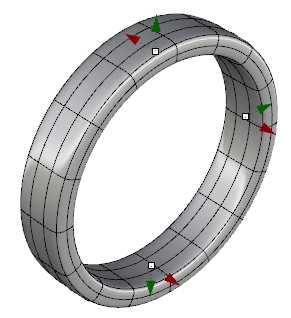
Dragging the handles will allow you to change dynamically the dimensions.
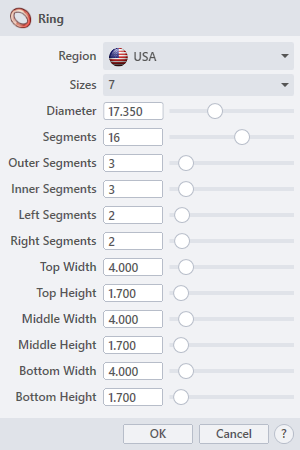
› Region
Sets the axis to create the revolve through. The drop-down list allow to choose between Europe, Finland, Germany, Hong Kong, Japan, Portugal, Spain, Taiwan, UK and USA.
› Sizes
Sets the size of the ring depending on the region. It relates with the diameter value.
› Diameter
Sets the diameter of the ring.
› Segments
Sets the number of divisions along the ring.
› Outer Segments
Sets the number of divisions across the external part of the ring.
› Inner Segments
Sets the number of divisions across the internal part of the ring.
› Left Segments
Sets the number of divisions across the left part of the ring.
› Right Segments
Sets the number of divisions across the right part of the ring.
› Top Width
Sets the dimension of the top broadness.
› Top Height
Sets the dimension of the top thickness.
› Middle Width
Sets the dimension of the middle broadness.
› Middle Height
Sets the dimension of the middle thickness.
› Bottom Width
Sets the dimension of the bottom broadness.
› Bottom Height
Sets the dimension of the bottom thickness.
1. Click  button to validate the command and apply the new geometry on the scene.
2. Click  button to cancel the command, and refuse to apply geometry on the scene.
3. Click  button to open the help information of the command, in case you need more detailed information about the tool being used.