Bridge


 Bridge
This tool allow us to create geometry between two selections. It works with faces and edges.
Toolbar |
SubD › Edition › Bridge |
Menu |
Clayoo › Edition › Bridge |
Command |
_ClayBridge |
Both selection to create the bridge must have the same number of faces o edges.
Bridging faces
Bridging the same geometry with different bridge modes:
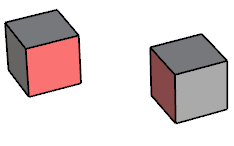
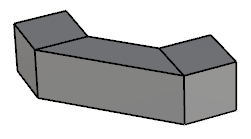
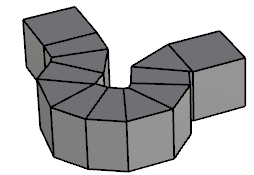
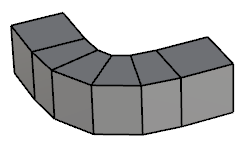
Current selection |
Group |
By Curve |
Tangential |
Bridging edges
Bridging edges using linear mode:
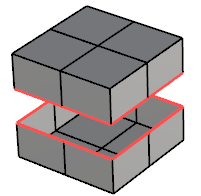
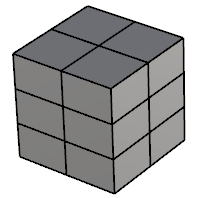
Current selection |
Result |
Aligning bridges
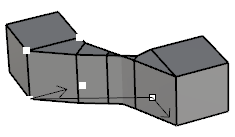
When creating bridges, the geometry could appear twisted. To fix that, we have to follow those steps:
1. Click on the  Align button.
2. Match the point and the direction in both sides of the bridge.
3. Click on a point to match between both sides.
4. Click again on the point to flip match direction.
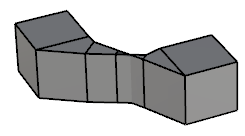
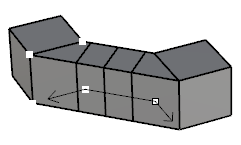
Twisted bridge |
Matching point (3) |
Matching direction (4) |
› Bridge Mode
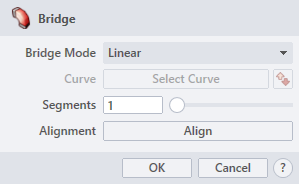
Sets the property of the bridge style. The drop-down list allow to choose between:
› Curve
This button allow us to create the bridge following a curve. This option is only available if the bridge mode is set to "By Curve".
›  Flip Curve
Flips the curve direction swapping the start and the end points.
› Segments
Sets the divisions along the bridge (when using By Curve or Tangential mode, the number of segments should be increased to fit better).
› Alignment
Sets the line up of both selections .
1. Click  button to validate the command and apply the new geometry on the scene.
2. Click  button to cancel the command, and refuse to apply geometry on the scene.
3. Click  button to open the help information of the command, in case you need more detailed information about the tool being used.