Texture Creator


 Texture Creator
This tool allow to define greyscale images to create textures.
Toolbar |
Emboss › Texture Creator |
Menu |
Clayoo › Commands › Texture Creator |
Command |
_ClayEmbossTextureCreator |
Steps:
1. Select the objects to create a texture. This command works on Top view.
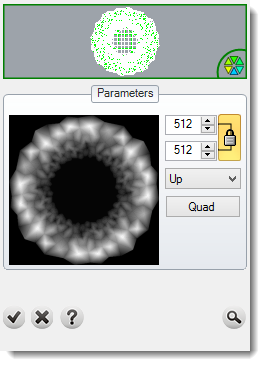
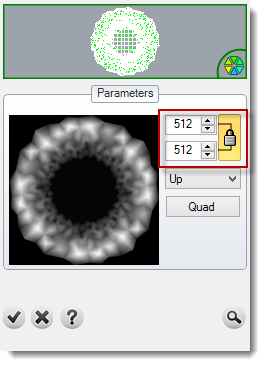
2. Define the image resolution.
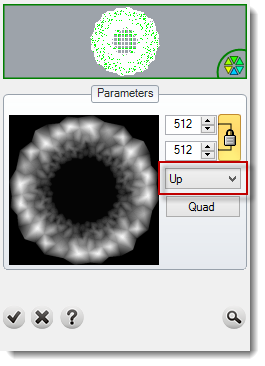
3. Direction: You can get the top side (up) or the bottom side (down)
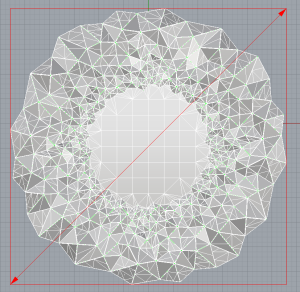
4. Click on preview button to see the result. You can modify the corners using the gumball. If you press Shift key, it will move. Anytime you can click on Quad button to resize the height or the width.
5. Click on the Tick button to add the texture. And select where you want to save it: Stamps Library or Texture Library.
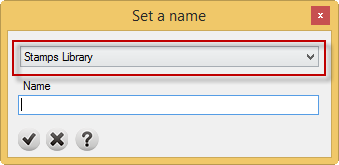
6. Set the name and click on Tick button.
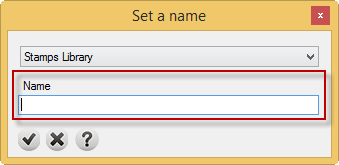
7. Click on Tick button.